Technology
Powershell, powershell and powershell, oh and windows, IIS and Go (build server)Process
As I described in my earlier post the blue green web deploy consists of these steps: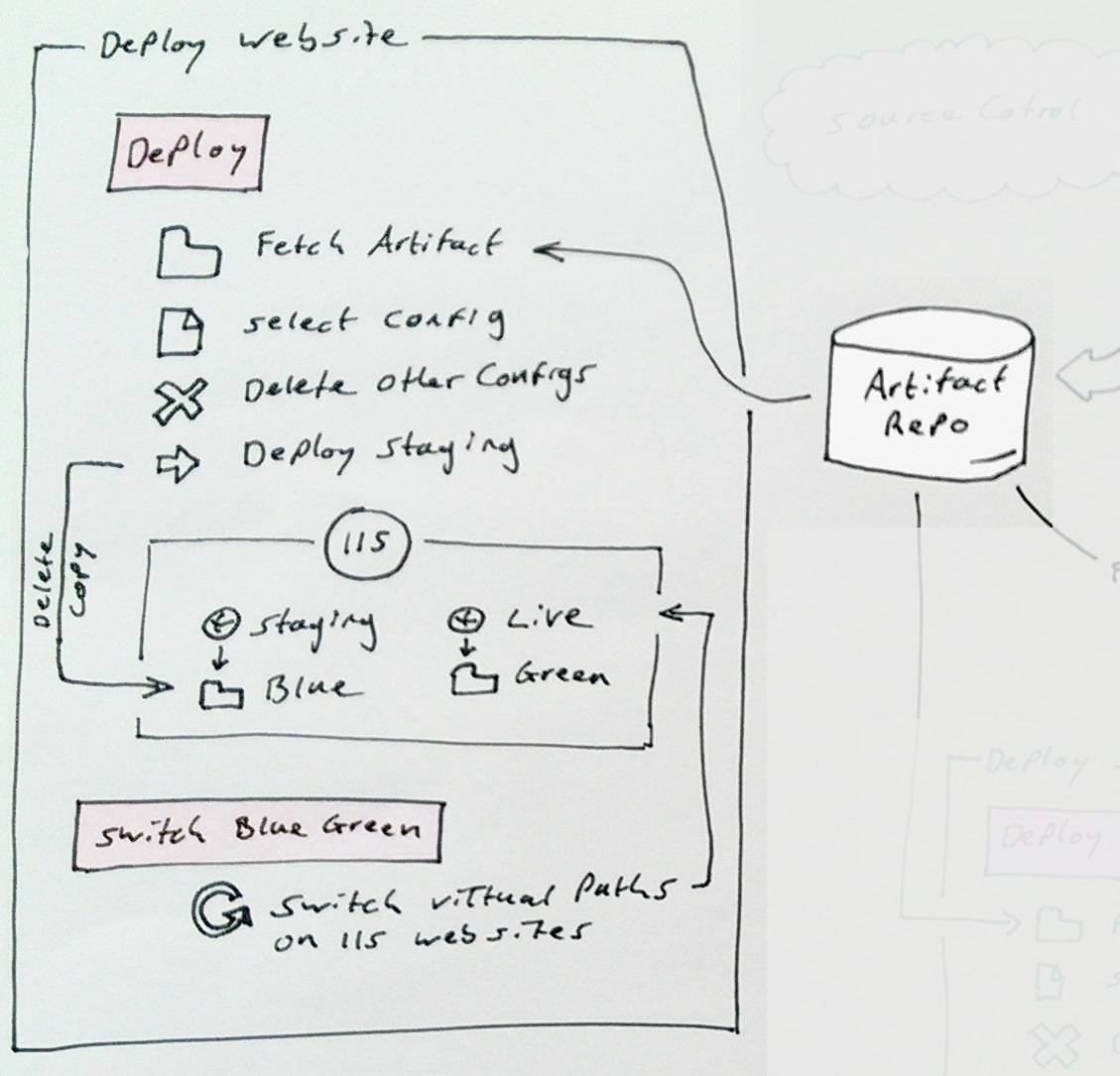
1. Deploy
1.1 Fetch artifact
1.2 Select the config for this deployment
1.3 Delete the other configs
1.4 Deploy to staging (delete then copy)
1.5 Backup live
2. Switch blue green
2.2 Point live to new code
2.3 Point staging to old code
Blue Green Deployment
Before diving in to the details I should firstly convey what blue green deployments are, and what they are not.
There are a few different ways to implement blue green deployments but they all have the same goals:
1. Allow testing on live without actually being live.
2. Enable deployments to have the smallest possible impact on the live service as possible.
3. Give you an easy roll-back path.
This can be accomplished in many ways. Techniques include DNS switching, directory moving, or virtual path redirecting.
We have chosen to do IIS physical path redirecting. This allows us to do the same technique on all our environments from test to live, same scripts, same code, and doesn't cost as much as requiring multiple servers which DNS switching would require.
Commands used for this demo are
PS> .\Create-Websites.ps1 -topLevelDomain co.uk

PS> Deploy-Staging -source c:\tmp -websiteName foobarapi -domainName foobar.co.uk

PS> Backup-Live -WebsiteName foobarapi -DomainName foobar.co.uk

PS> Switch-BlueGreen -WebsiteName foobarapi -DomainName foobar.co.uk
The code I'm going to talk through is all located here: https://github.com/DamianStanger/Powershell
Conventions used:
All websites are named name.domain and name-staging.domainAll backing folders are in c:\virtual and are named name.domain.green and name.domain.blue
You don't know if blue or green is currently serving live traffic.
Backups are taken to c:\virtual-backups\name.domain
Log files always live in c:\logs\name.domain
There is always a version.txt and bluegreen.txt in the root of every website/api
In this example I'm using name=foobarapi and domain=foobar.co.uk
The technical detail
This is the meaty stuff, it consists mainly of powershell, and should work no matter what CI software you are using. I can heartily recommend Go by Thoughtworks. It has a built in artifact repository and brilliant dependency tracking through its value stream map functionality.
Setup IIS and backing folders
To test my deployment scripts you will firstly need to set up the dummy/test folders and IIS websites. For this you can use this script: Create-Websites.ps1. I'm not going to go into detail of the script as its not the focus of this post but it creates your app pool and website.
The code is exercised with the following:setupWebsite "foobarui" "foobarui-test" $true "green"
applyCert("*.foobar.*") <<optional if you want the sites to have an ssl cert applying>>This will create 2 websites on IIS pointing to the green and blue folders as per the conventions outlined further above. Finally apply an SSL certification using powershell, this command will apply the SSL cert to all the websites in this instance of IIS.
To remove the created items from IIS issue commands similar to this:
PS> dir IIS:\AppPools | where-object{$_.Name -like "*.foobar.co*"} | Remove-Item

PS> dir IIS:\Sites | where-object{$_.Name -like "*.foobar.co*"} | remove-item

PS> dir IIS:\SslBindings | remove-item
Once you have the websites correctly set up you can then utilise the deploy blue green scripts :-)
Deployment
The Blue Green deployment module is located here: BlueGreenDeployment.psm1 and will need importing into your powershell session with the following command:PS> Import-module BlueGreenDeployment.psm1Once you have the module imported you can issue the following commands:
PS> Deploy-Staging -source c:\tmp -websiteName foobarapi -domainName foobar.co.uk

PS> Backup-Live -WebsiteName foobarapi -DomainName foobar.co.uk

PS> Switch-BlueGreen -WebsiteName foobarapi -DomainName foobar.co.uk
Lets dig into these one by one.
1. Deploy-Staging
This is quite straight forward. Find the folder that is currently serving staging and copy the new version there. The interesting bit of code is the method of determining which folder to replace with the new version. IsLiveOnBlue and GetPhysicalPath work together to determine the folder in use on staging. Notice the retries inside GetPhysicalPath I found that sometimes IIS just doesn't want to play, but if you ask it a second time it will?? Don't ask..
The code that actually determines the physical path is:
$website = "IIS:\Sites\$WebsiteName.$domainName"

...

$websiteProperties = Get-ItemProperty $website

$physicalPath = $websiteProperties.PhysicalPath
The rest of the powershell is relatively straight forward
2. Backup-Live
Backing up live is again pretty standard powershell. Again determine the folder that is serving live then do a copy. Done.
3. Switch-BlueGreen
Performing the switch is actually really easy when it comes to it. Firstly determine which folder (blue or green) is serving live (same code as the deploy step) and then switch it with the staging website.
Set-ItemProperty $liveSite -Name physicalPath -Value $greenWebsitePath -ErrorAction StopThe only added complication is the rewriting of the log file location in the web.config. Log4net only really works well if one process (web site) uses one log file. Again you can look this up yourselves as this is an aside to the main purpose of this post.
Conclusion
The interwebs in general are full of articles/opinions/tales of how bad windows is to automate, it actually winds me up. Maybe it used to be true but I've been finding that with powershell and Go I've been able to automate anything I need. It's so powerful. Don't let the microsoft haters stop you from doing what needs to be done.The blue green deployment technique outlined here is working really well for us at the moment and has helped us to take our projects live sooner/quicker and with more confidence.


